Google Play Service Account
Google Service Account is required to upload your binary to Google Play Store. This JSON key must be added to your account to publish apps to Google Play.
-
Please go to Google Cloud Platform and create a Google Cloud Project.
-
Enable the
Google Play Android Developer APIfor your Google Cloud Project.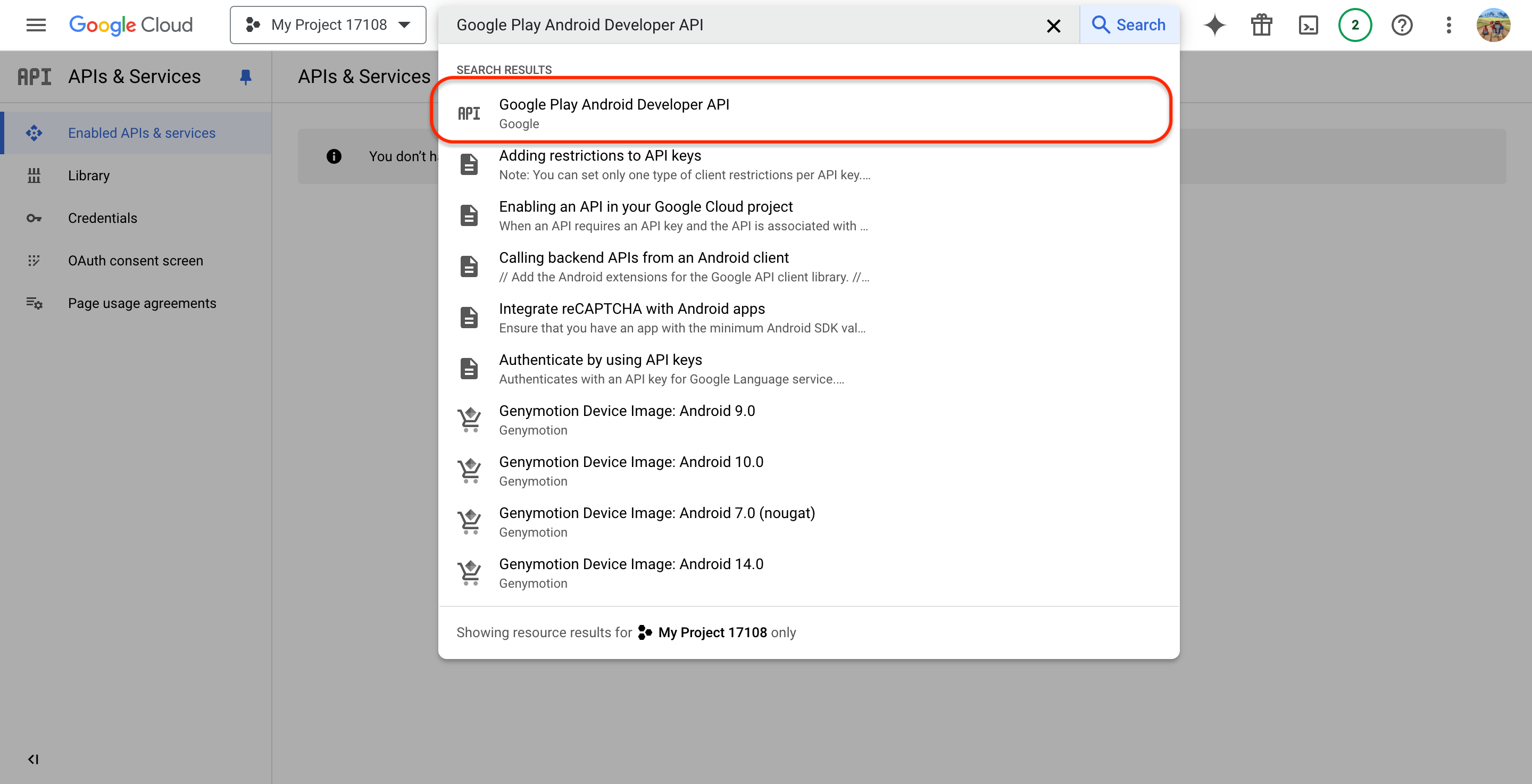
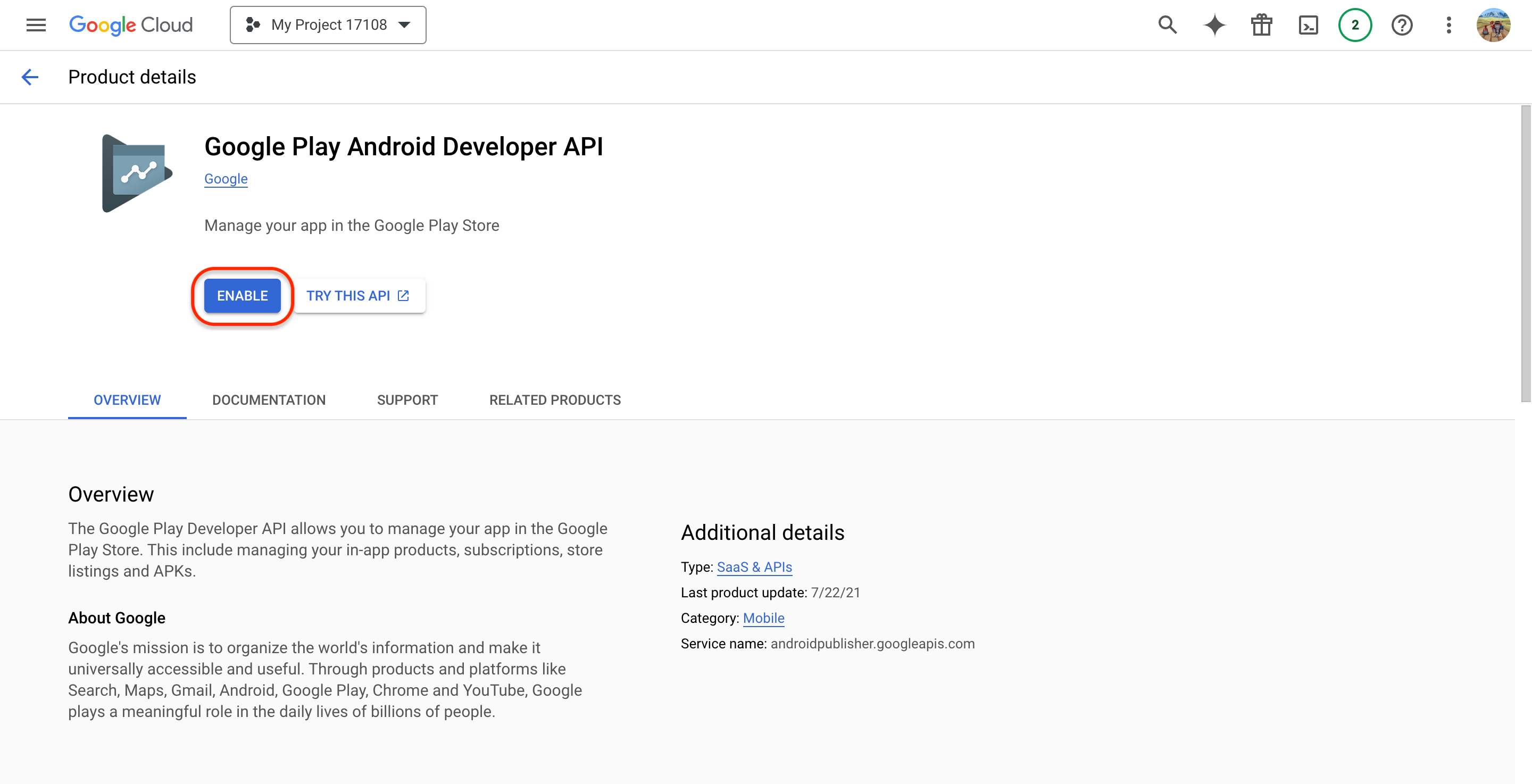 danger
Skipping this step will result in your JSON being rejected by Appcircle because it will not have access to the project.
-
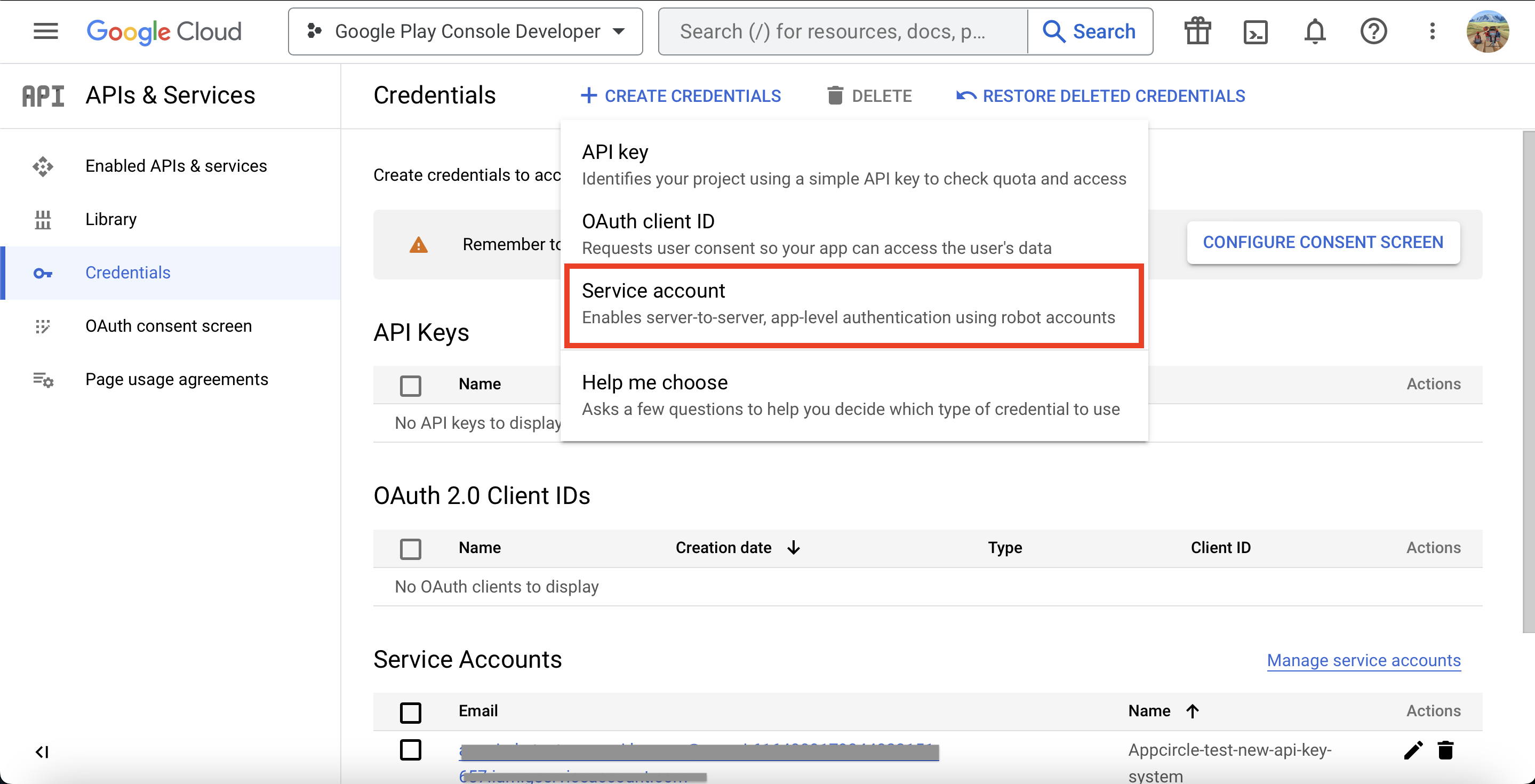
Login with your account, then head over to Credentials -> Create Credentials, and then click Service account.
-
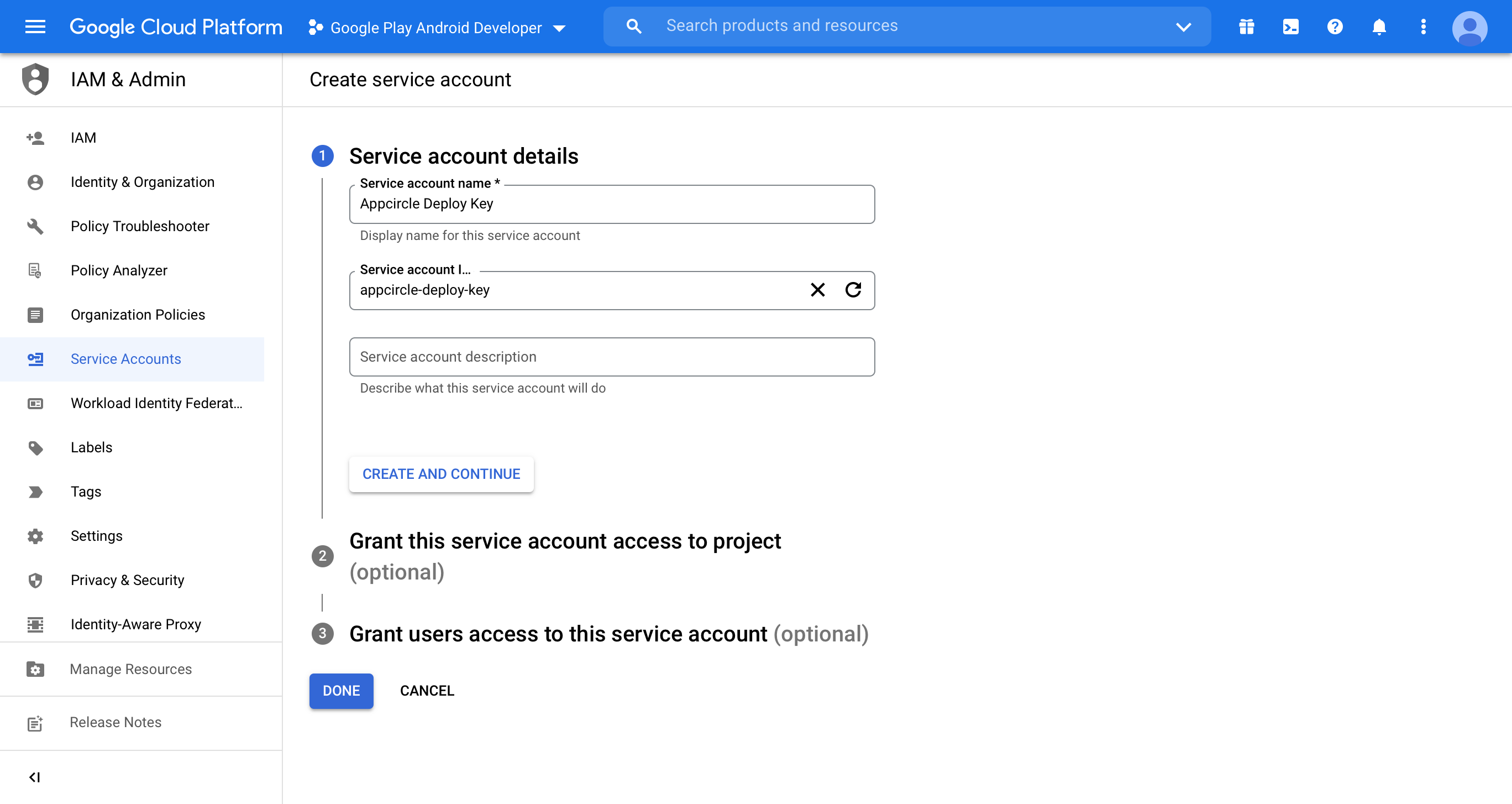
This screen will forward you to the Create service account page. Fill in the details of your service account. According to the service name you set, an automatic Service account ID will be created.
-
Please select
Editorin the Role dropdown.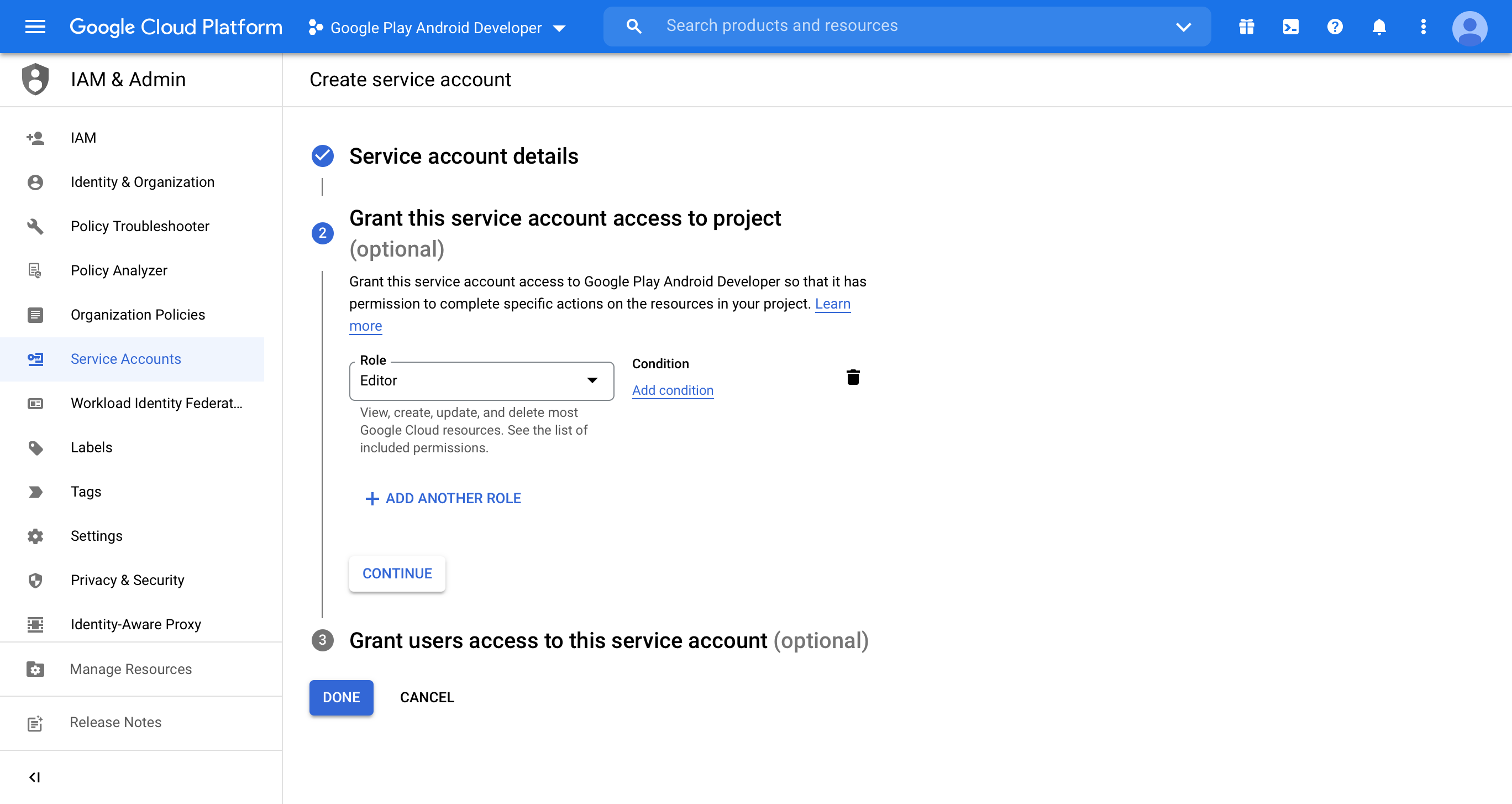 info
infoEditoris a Google Cloud IAM role and applies to the Google Cloud project only. It is not the same as a Google Play Console permission, and it does not give the service account any access to your apps in Google Play. You grant the Google Play Console permissions separately in step 13. -
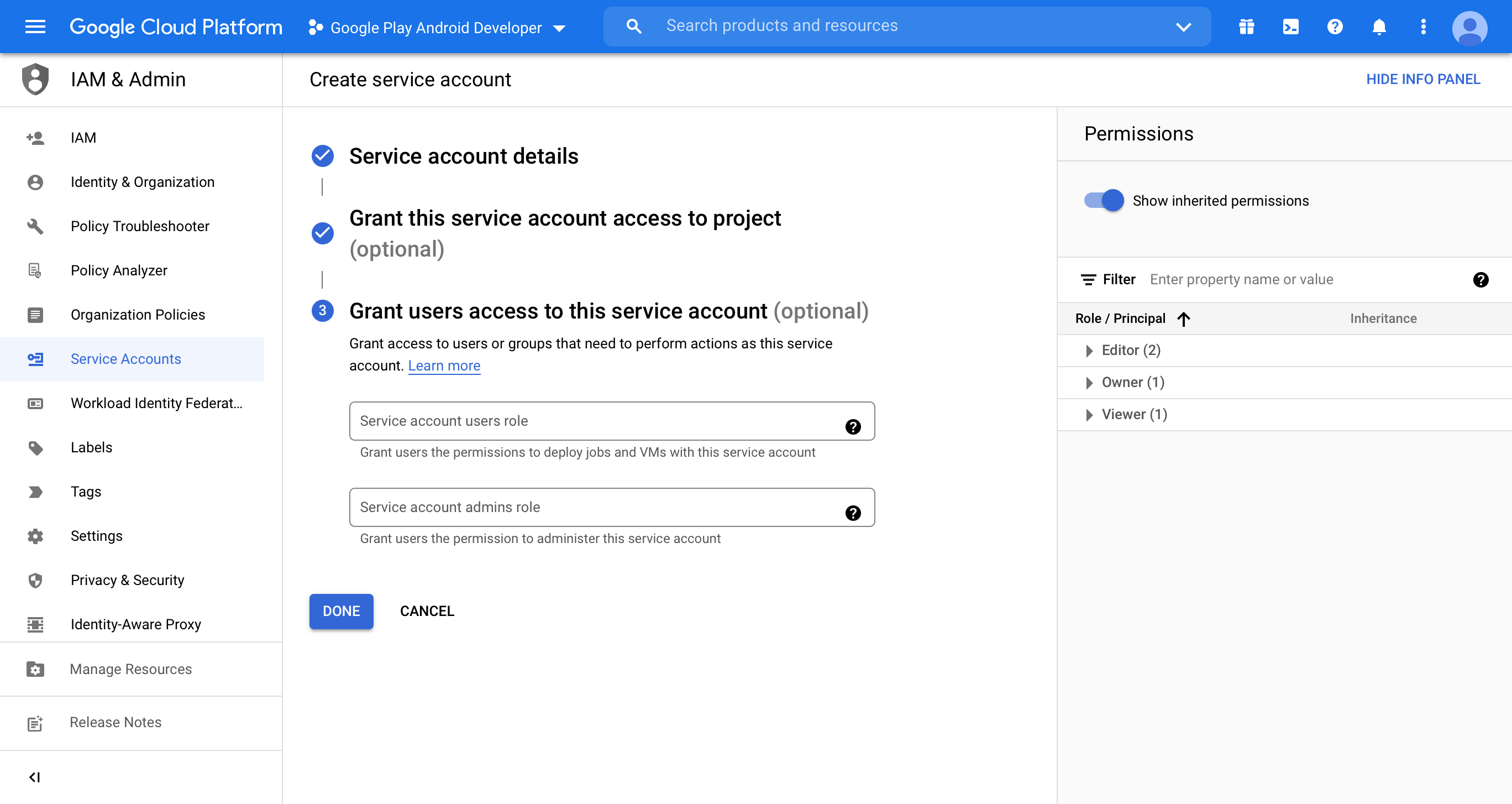
Click Done to save this account.
-
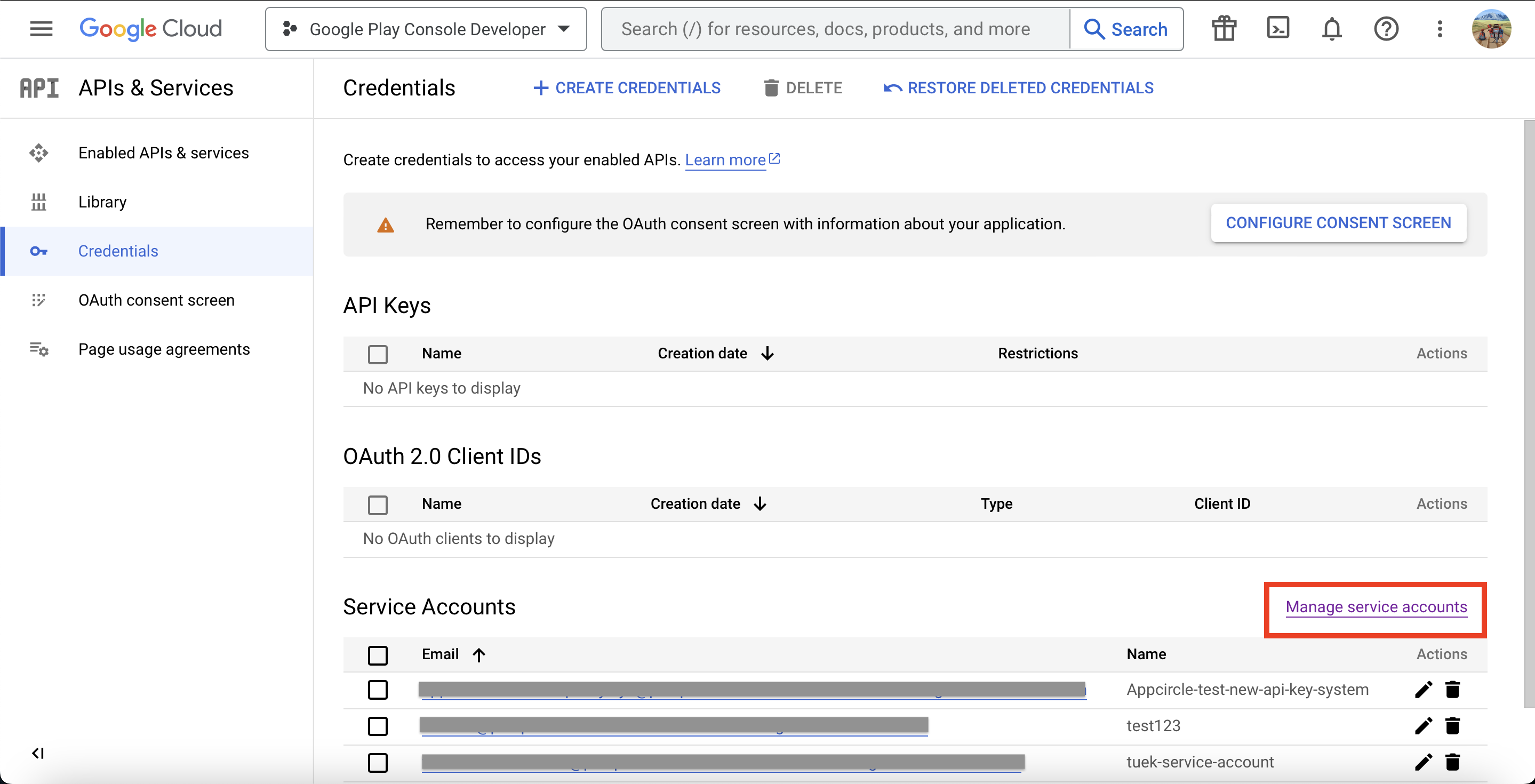
Click Manage service accounts to open manage page.
-
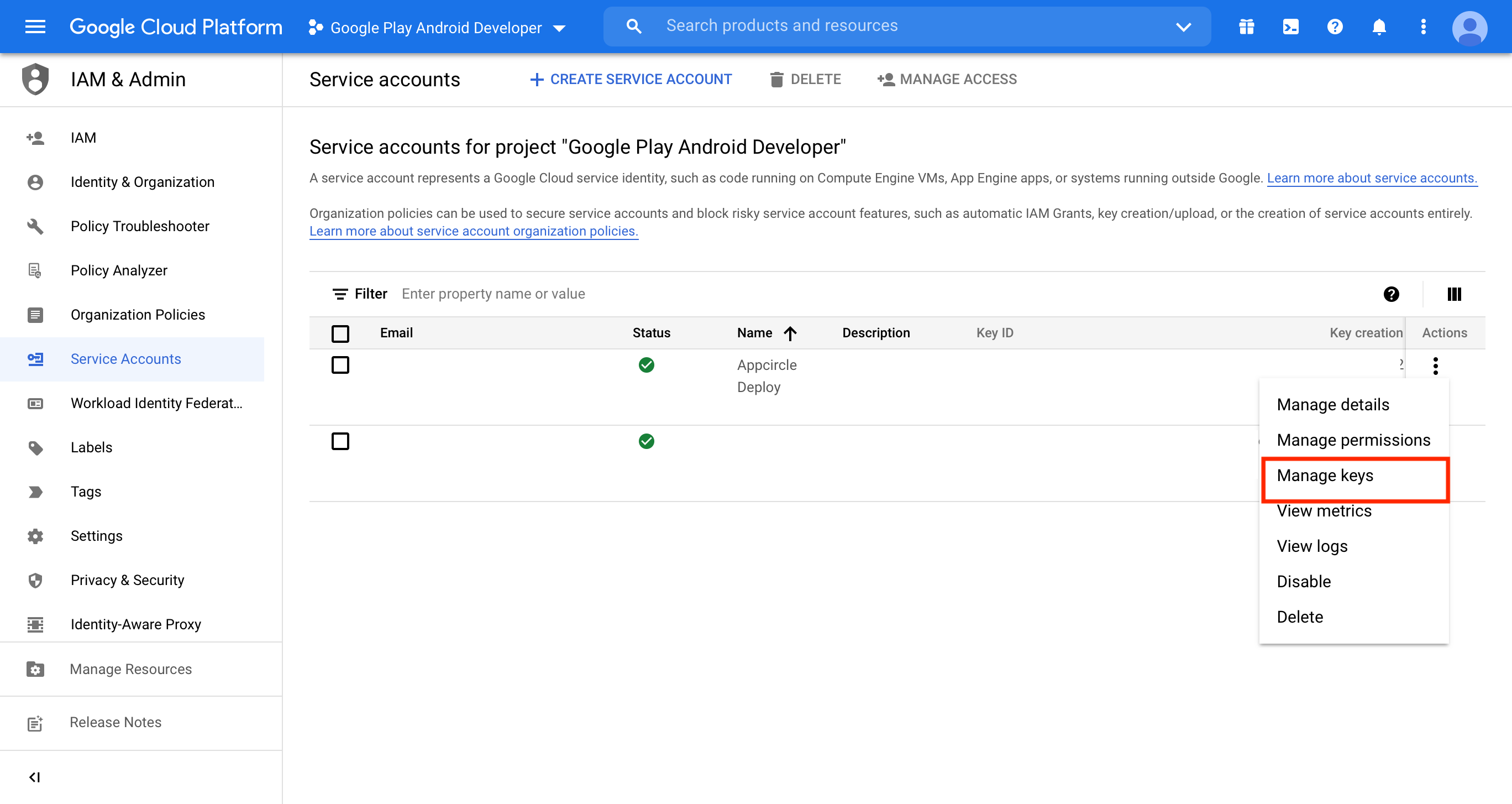
Find the account you have just created. Click three dots on the Actions column, and then click Manage keys.
-
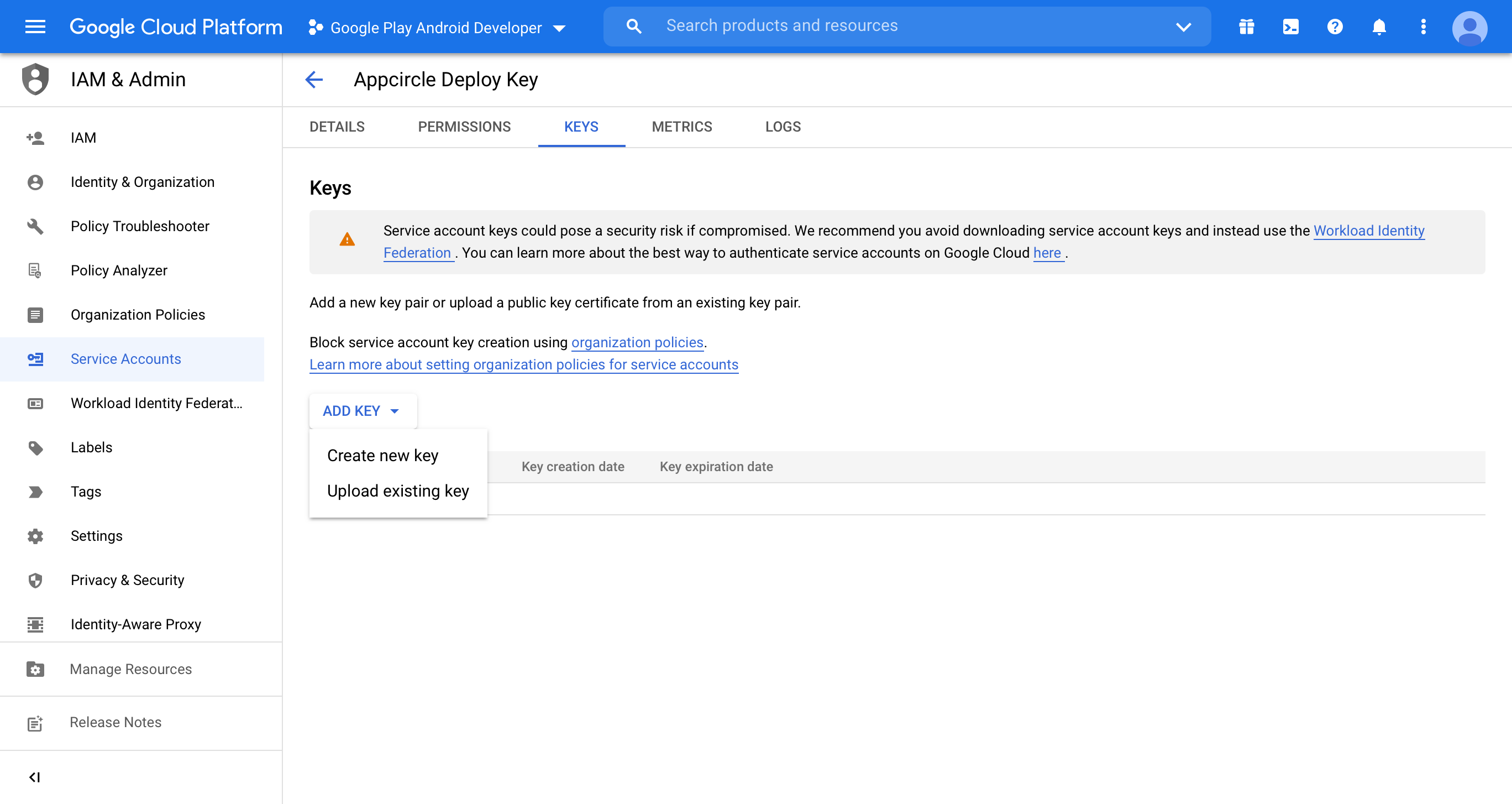
Click ADD KEY and then click Create new key.
-
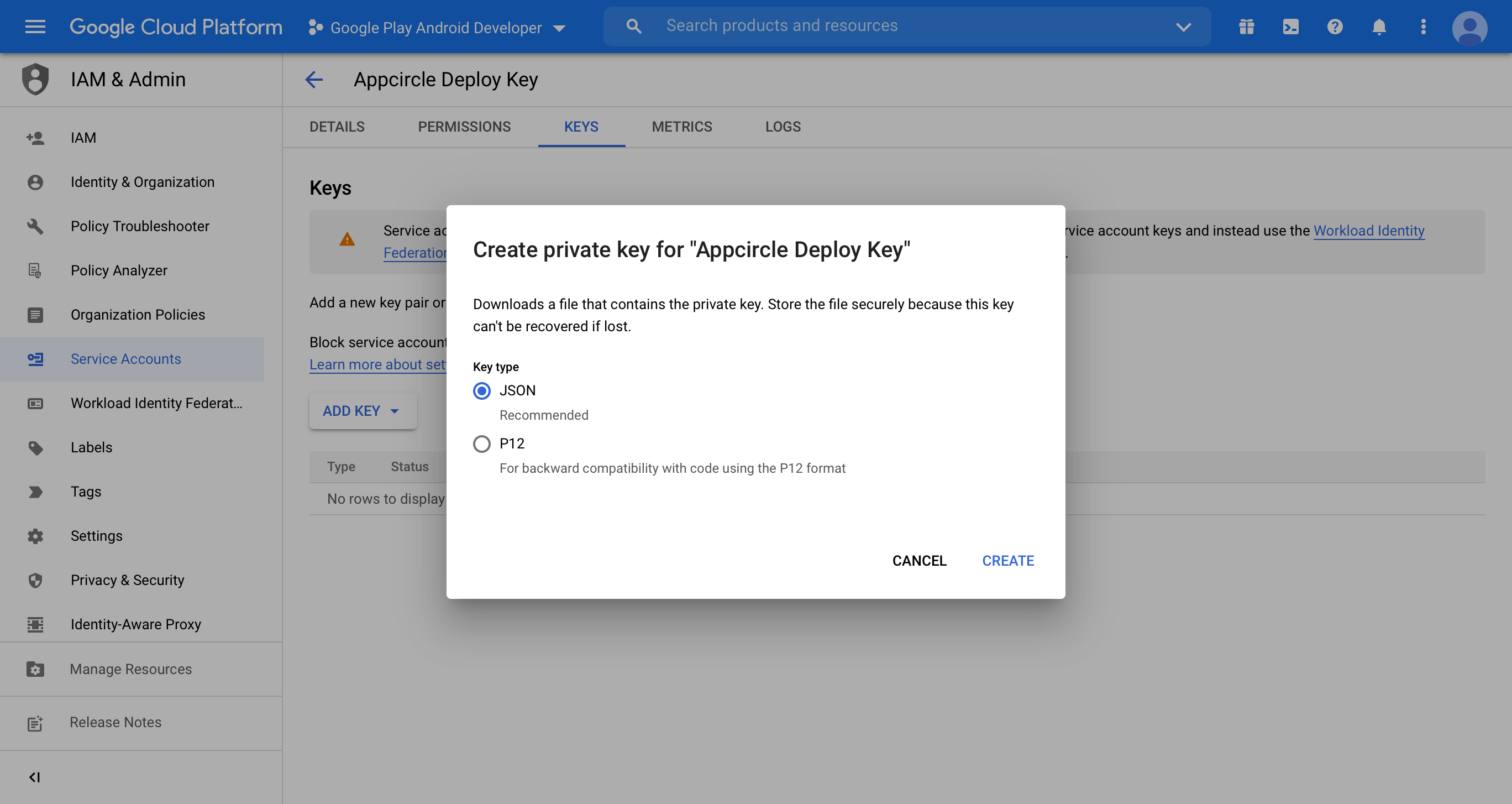
Download your key as JSON and save it.
-
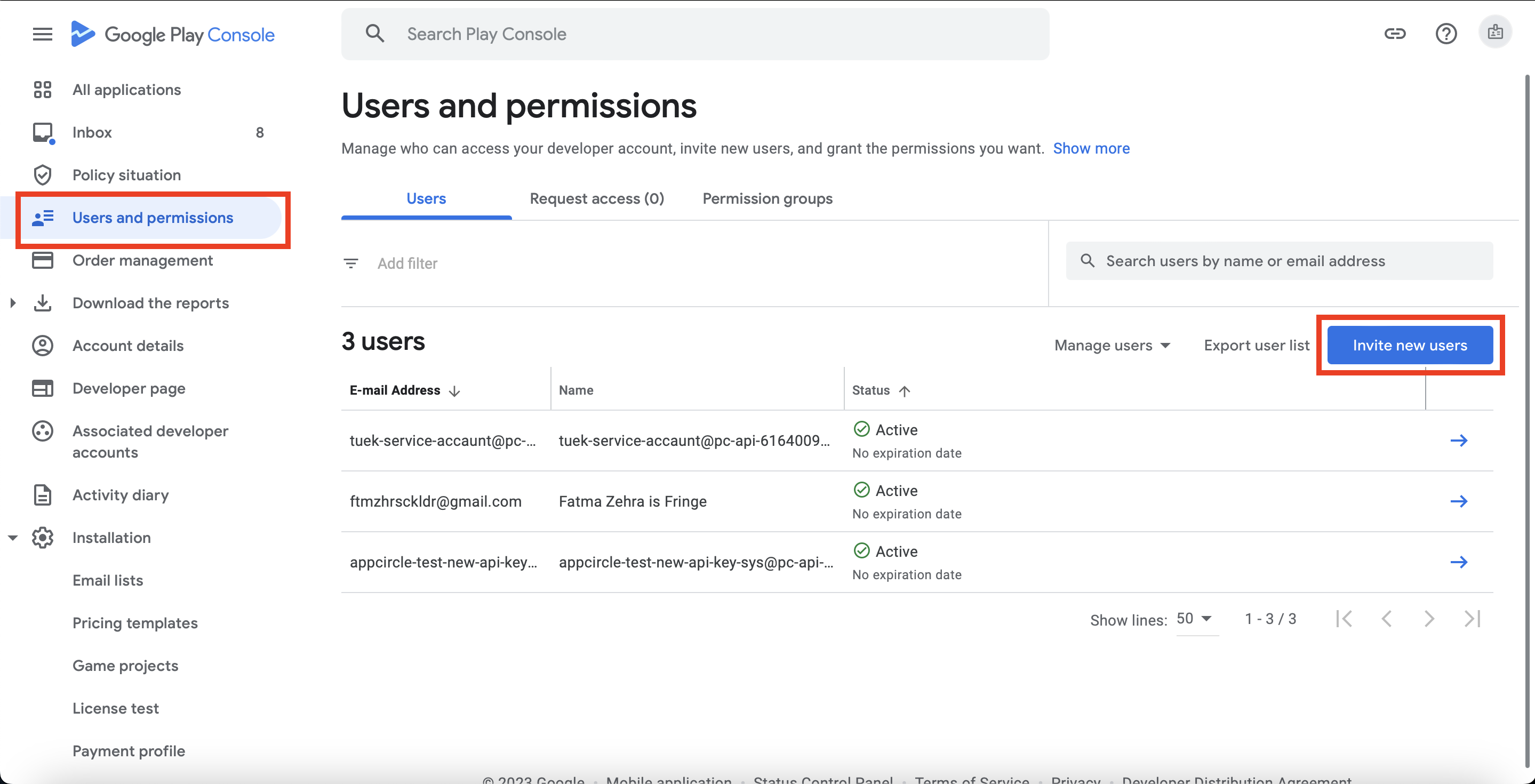
Go to Google Play Console and login with your account and then head over to User and permissions and then click Invite new users.
-
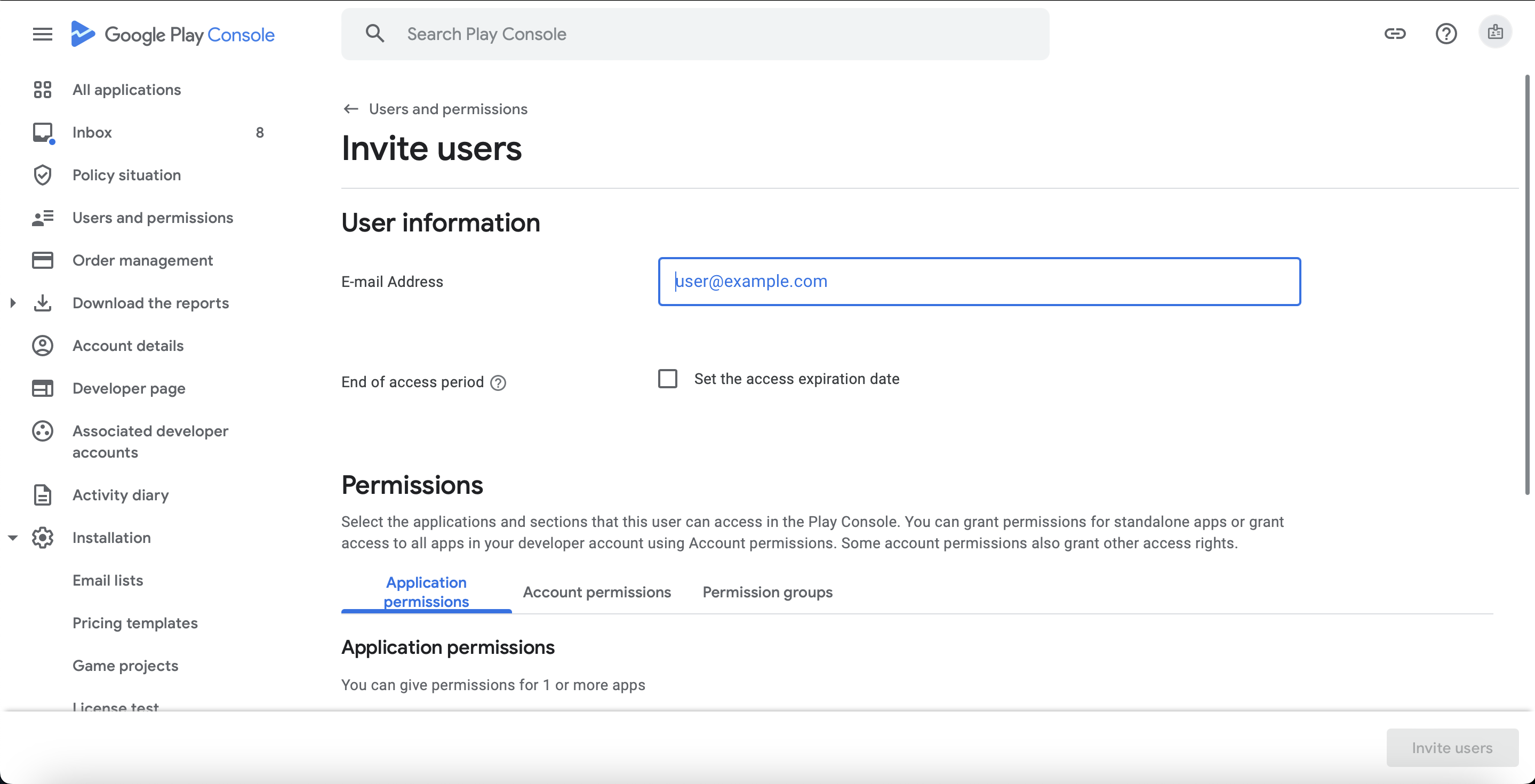
Add the email, generated in step 6 in the E-mail address field.
-
Check the permissions of your user.
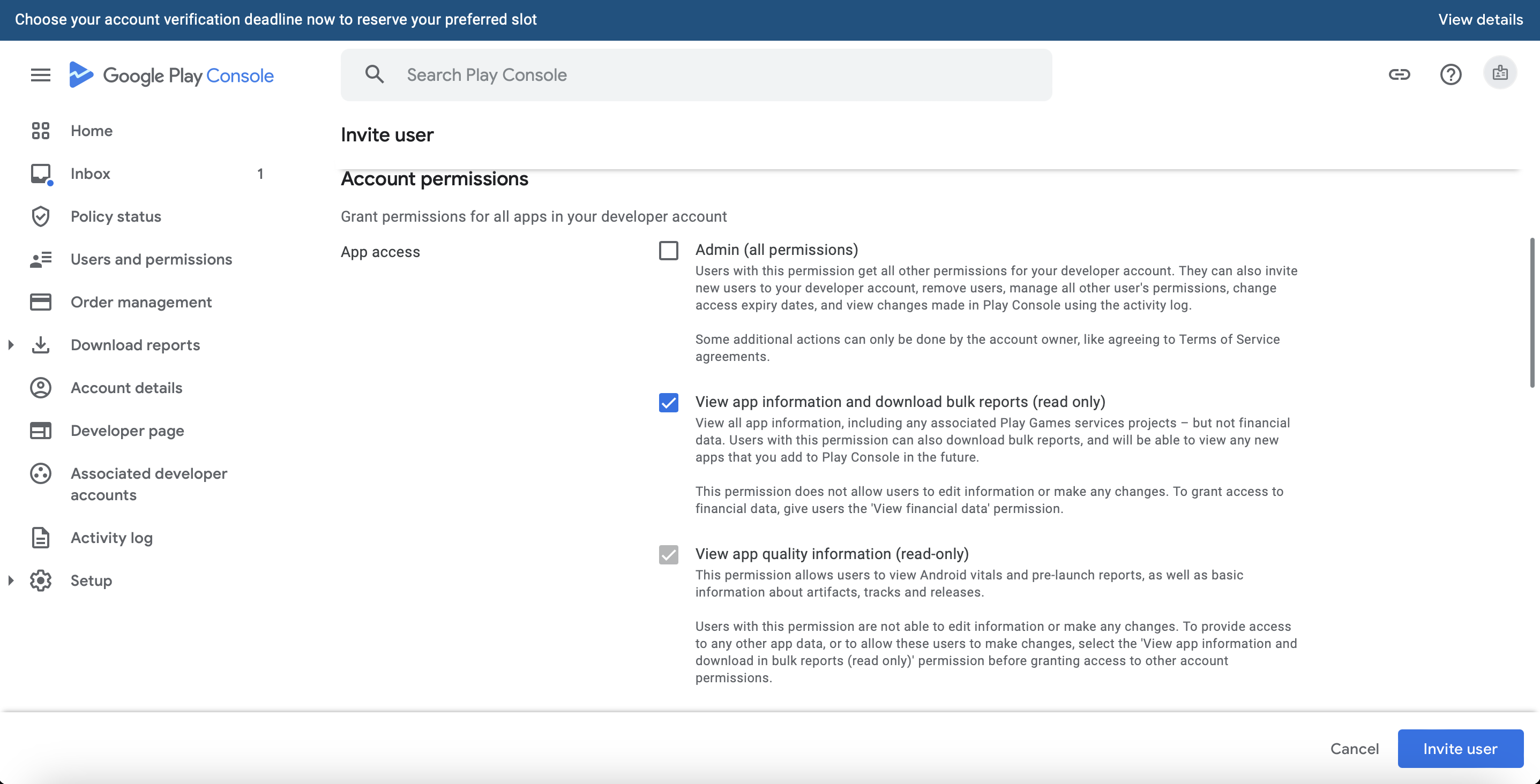
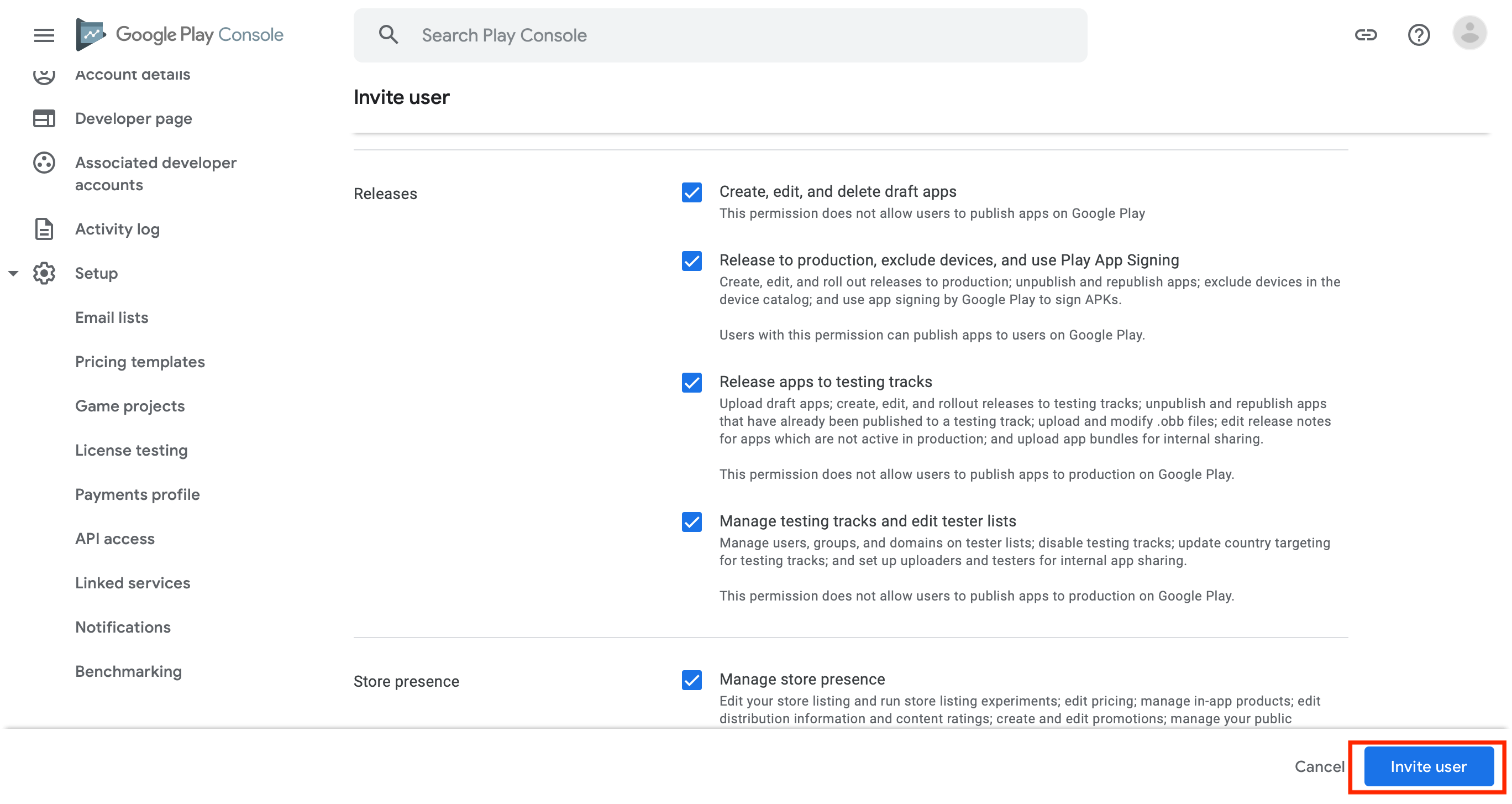
Then click Invite User. Your account key is ready. 🎉
Choosing the Service Account Permissions
The permissions you grant to this user determine which Appcircle features the service account can use, so make sure this account has access to Releases, Store presence, and App access (for read-only ones).
Appcircle feature Admin (all permissions) Releases + Store presence + read-only App access Release apps to testing tracks only Upload a binary to internal / closed / open testing ✅ ✅ ✅ Manage testing tracks ✅ ✅ ⛔ Update Google Play Console metadata ✅ ✅ ⛔ Release to production ✅ ✅ ⛔ Grant these permissions for the whole developer account or for a single app, as described in Account-Level and App-Level Permissions.
cautionGrant Releases, Store presence, and App access (read-only) to this user. This is the smallest permission set that supports the complete Appcircle publish flow, including production releases, and it is the recommended setup. An Admin (all permissions) account also works, but it grants far more access than Appcircle needs.
Using a lower-privilege permission setAn account limited to Release apps to testing tracks only can upload a binary to the internal, closed, and open testing tracks, which is enough if you distribute test builds through Appcircle and nothing else. Such an account cannot manage testing tracks, update Google Play Console metadata, or release to production, so those publish steps will fail with that account.
Account-Level and App-Level Permissions
Google Play Console grants permissions at two scopes: Account permissions apply to every app in the developer account, and App permissions apply only to the apps you attach to the user with Add app.
App permissions alone are enough, so the account permissions section can stay empty. Grant the permissions listed above for the app you publish through Appcircle: scoping the service account to a single app keeps a leaked key from reaching every app in the developer account.
Permissions from both scopes combine and neither one narrows the other, so an account-level permission stays in effect for every app. Admin (all permissions) exists at the account level only and already covers every app, which leaves app-level settings without any additional effect.
At the app level, viewing app information is the base permission that Google Play Console grants when you add the app, and the other app-level permissions build on it.
Adding Google Play Credential to Appcircle
To add the key on Appcircle, follow these steps:
-
Navigate to My Organization.
-
Locate the
Google Play Developer API Keysunder theCredentialssection. -
Click the
Managebutton if you have saved keys, or directly click theAdd Newbutton.
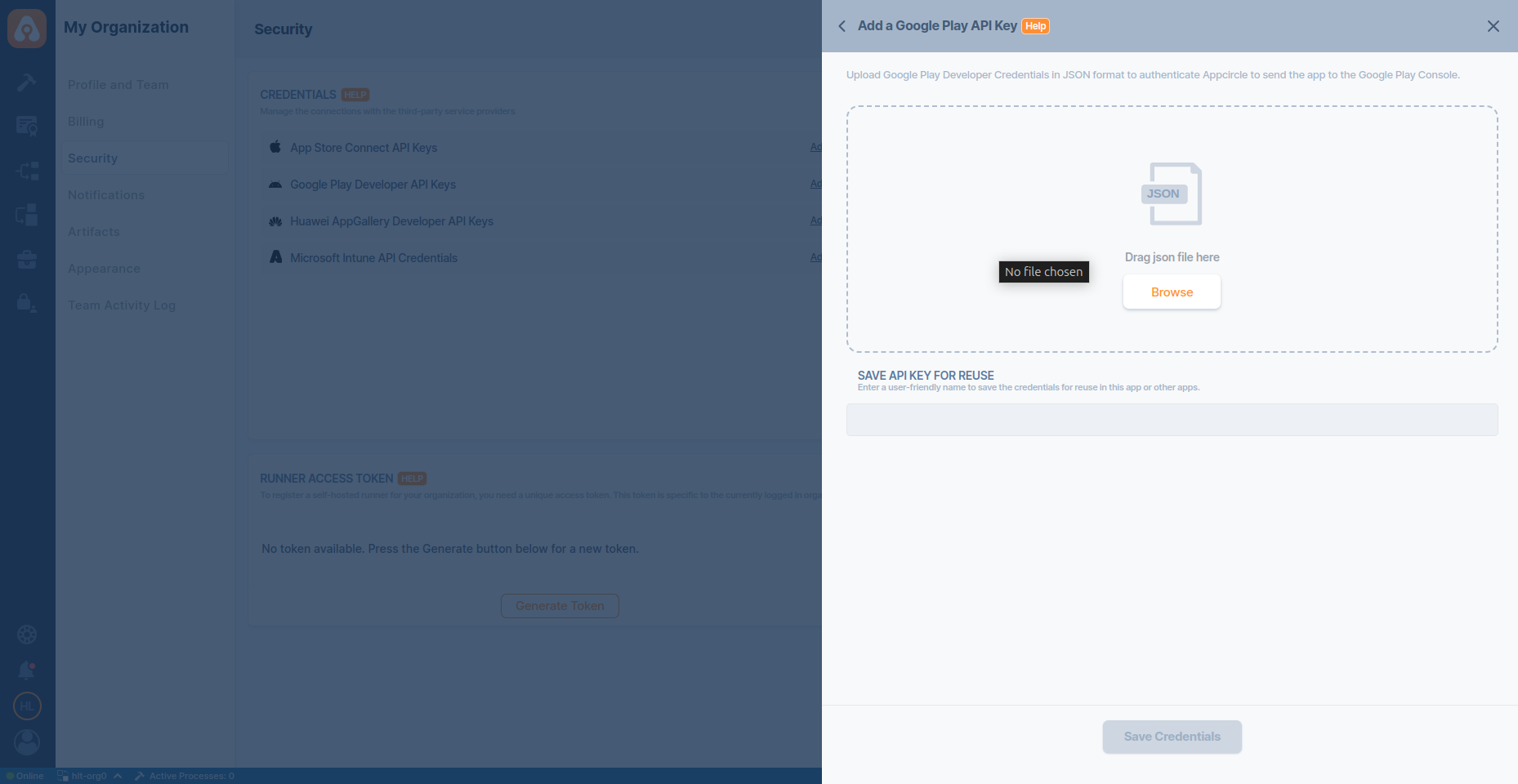
Sharing Google Play Developer Credentials
Root Organization users have the ability to share their saved credentials with Sub-Organization users. This feature helps streamline credential management across distributed teams and multiple organizational units.
How to Share Credentials
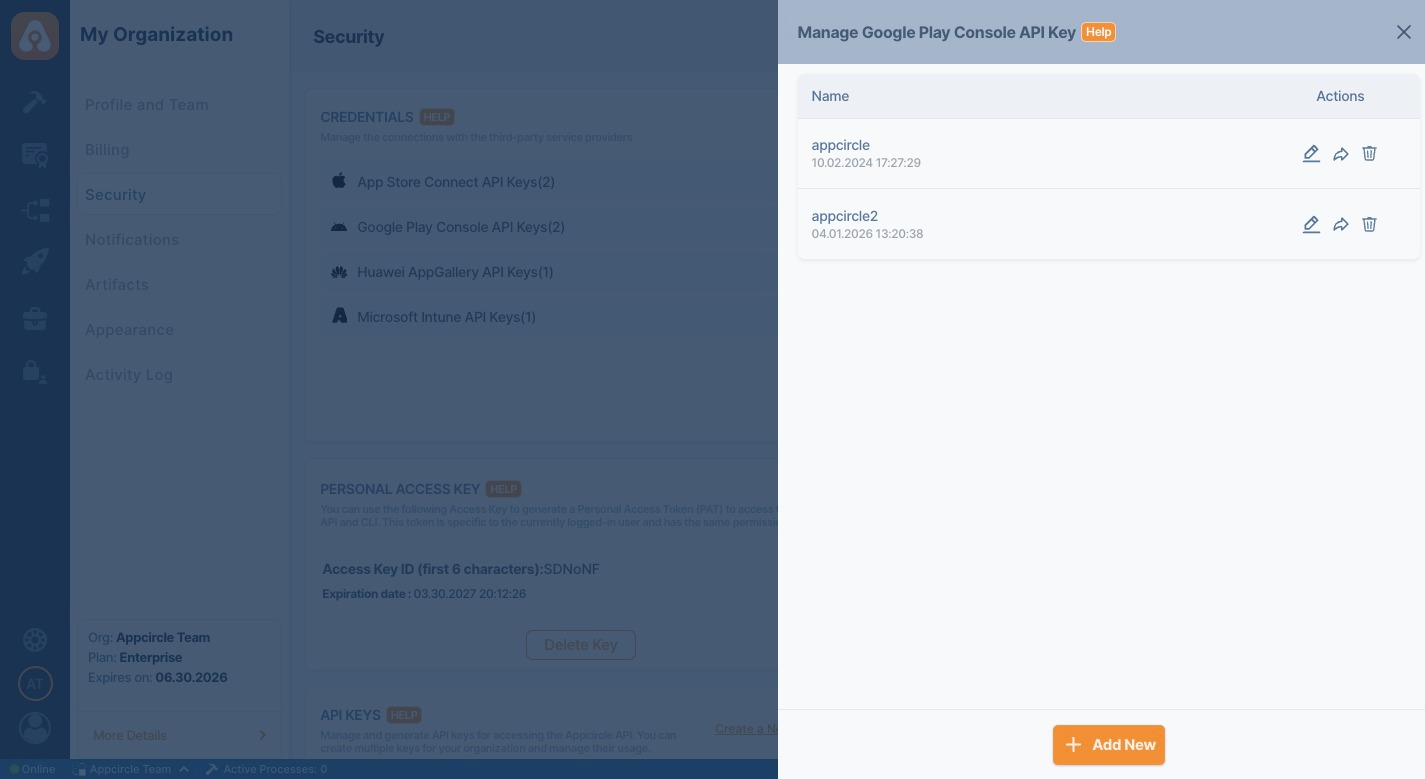
1. Navigate to the Credentials Section Go to My Organization > Security > Credentials.
2. Open Manage Panel Click the respective credential type (e.g., App Store Connect API Keys) to view your saved credentials.
3. Select the Credential Click the Share icon under the Actions column for the credential you want to share.
4. Configure Sharing Settings In the Share Credentials panel:
- Enter or confirm the Settings Name.
- Toggle Share with all sub-organizations if you want to make the credential available to all sub-organizations automatically.
- Alternatively, manually select specific sub-organizations that should have access by checking the boxes under Sub-Organizations.
5. Save Sharing Configuration Once your selections are made, click Share to apply.
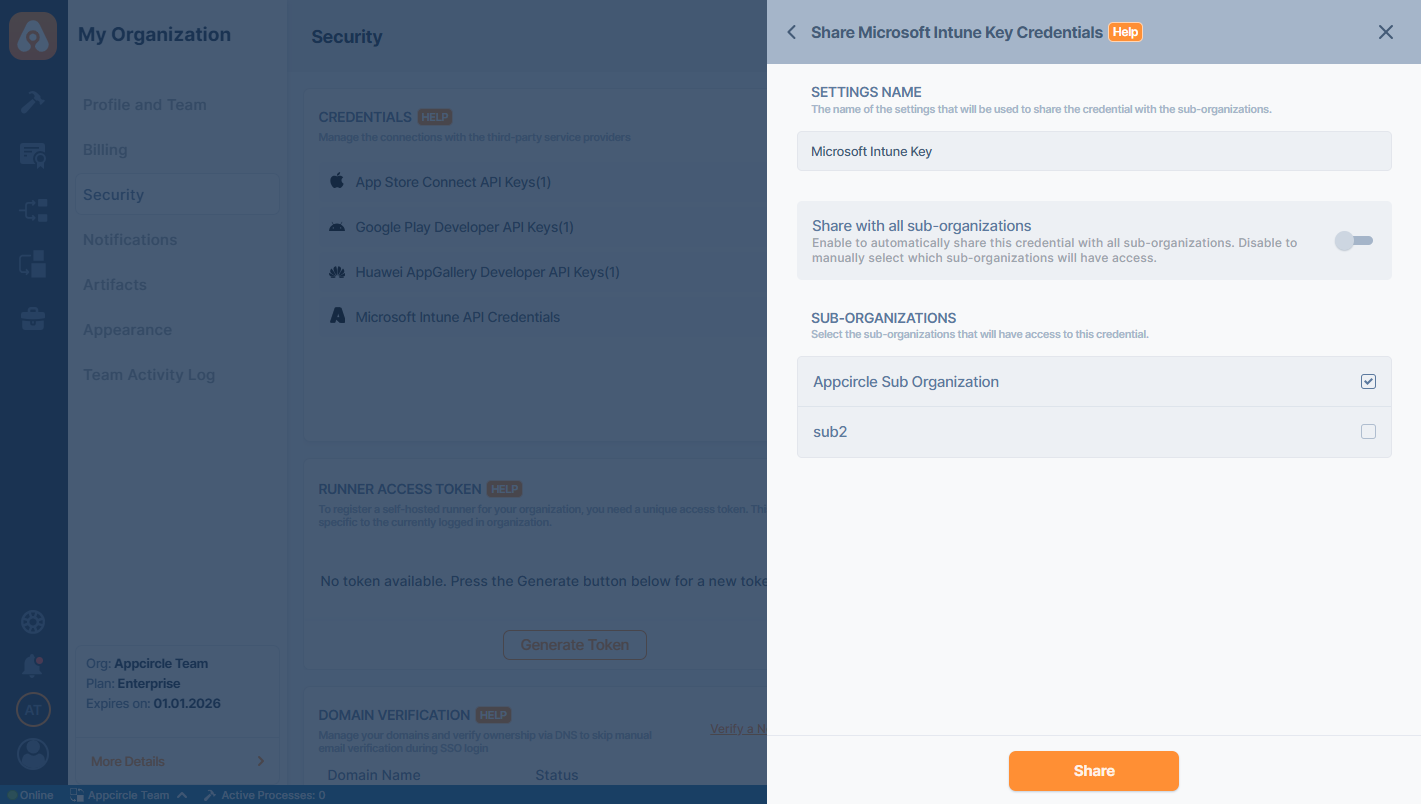
Shared credentials will be visible and usable in the selected Sub-Organizations as if they were their own.
Sub-Organizations cannot edit or delete credentials shared by the Root Organization.
The shared credentials by the Root Organization will be marked with Root Tag on the Sub Organization's credential list.
When the “Share with all sub-organizations” toggle is enabled, the credential is shared with all existing sub-organizations and will automatically be available for newly created sub-organizations.
You can also edit the name of the credential setting by clicking the edit button
FAQ
Can I retrieve the JSON private key that I uploaded to Appcircle?
No, for security reasons, you cannot download the JSON file you uploaded to Appcircle.
Why cannot I save the JSON after uploading it?
You might have missed the first step. Please ensure that you have enabled the Service Account.